


Trader Education
Guide to MetaTrader Part 2 – Installation Guide
25 Apr 2013

In the second part of our MetaTrader tutorial, we’ll be walking you through the installation process. By the end of this task, you should have a fully-functional version of the program on your computer, ready and waiting for you to start trading.
Step 1: Download and Install
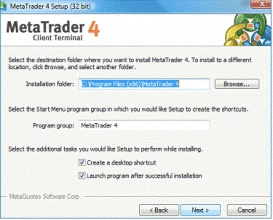
Metatrader 4 can be downloaded from Metaquotes directly from metatrader4.com, or you can also get it from most forex brokers. Click the ‘Download’ button, and a setup window should appear with the license agreement. Click ‘Next’ to start the installation process, and a new window with installation options will appear. Here, you can choose the folder you would like to install it to (it’s usually best to stick with the default), and whether you would like a desktop shortcut and for the program to launch automatically after installation. Once you have selected the desired options, click ‘Next’ and you will be taken to a progress monitor window that shows you how the installation is going. Once it’s completed, click ‘Next’, and all being well, you will have MT4 installed on your PC!
Step 2: Setup & Selecting Options
The first time you launch MT4, it will start with its default parameters, and a pop-up window will appear asking you to open an account, which is necessary to make the program work. Provide all the necessary contact details, and then select the account type, the currency you will be funding your account with, the amount of leverage that you want, and the size of deposit.
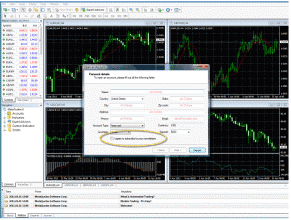
In most cases, the account type will automatically be set to demo account, which allows you to practice using the program without risking any real money. However, this may not always be the case if you downloaded a broker-specific version of the program and you have already opened and funded an account with them. If you wish to use it straight away with a funded account, this option may appear automatically, or you may have to enter the details provided by your broker into a dialog box in order to sync up your account with MT4.
The currency that you fund the account with should be your own native currency, so if you live in the US it should be USD/$ and if you live in the UK it should be GBP/£. This choice doesn’t make any difference to the range of currencies that you can trade.
The amount of leverage that you want depends on a number of factors, including how much your broker offers, and how much you will be funding your account with. The smallest unit you can trade with using MT4 is a micro-lot (1,000 units), so keep this in mind when selecting the amount of leverage that you require. Set it too high, and you could be over-exposed to small price movements, but set it too low and you might not be able to afford to make all of the trades that you would like to.
You don’t need to worry too much about this, especially if you’re starting in demo mode, as you can always change it later, but it’s worth thinking about anyway. The same goes for the deposit size in demo mode. Ideally, you should set this at the same level you would fund your account with to give you a more realistic experience, but you can always top this up later.
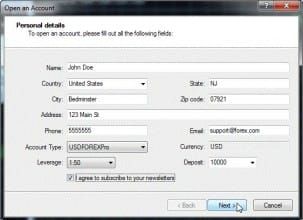
Once you’re happy with all your selections, you have to click “I agree to subscribe to your newsletters”. This makes the ‘Next’ button appear, and pressing this will complete the setup process. You will then be taken to the default MT4 screen, where the data will start to automatically update and the price charts will start to spring into action. .
Tomorrow, we’ll be taking a taking you on a guided tour of the home screen, and finding out what all the buttons do. See you then!
Other posts in this series:
Part 1 – Introduction and FAQ
Part 3 – The Home Screen
Part 4 – Placing Trade Orders


