
business resources
How to Convert Image to Text in Seconds Without Typing a Single Word
30 Jul 2026

You may often need to convert an image into text. It could be a screenshot, a scanned document, or even a picture of your handwritten notes. If you have ever tried to write everything by hand, you know it takes a lot of time, sometimes even hours. And still, there are chances of an error.
The following are some common situations where users often need to extract text from images:
- Save printed content in a digital format
- Convert handwritten notes into digital text
- Reuse content from PDFs or books
- Share text from images without retyping
- Extract quotes or data from images
However, with the help of OCR (Optical Character Recognition) technology, it can be done in a few seconds. This technology is available through online tools. These tools scan the image and convert it into editable text quickly. Let’s learn more about it in detail.
Converting Image to Text Using an OCR Tool
To use an online OCR tool for converting an image into text, you need to follow these simple steps:
Step 1 - Pick an OCR Tool
To perform this conversion, you need to select an OCR tool first. Search for an OCR tool or an image-to-text converter in your browser. Make sure you select one that is reliable to ensure maximum speed and accuracy in the conversion process.
Below we have listed a few factors that will help you in the selection process.
- Prioritize the one with high rankings in Google.
- Supports image-to-text conversion in multiple languages.
- Allows you to upload multiple images at once for conversion.
Thankfully, we found Editpad Image to text converter that fulfills all these factors. So, we will be using it for a pictorial demonstration of upcoming steps.
Step 2 - Upload Your Image
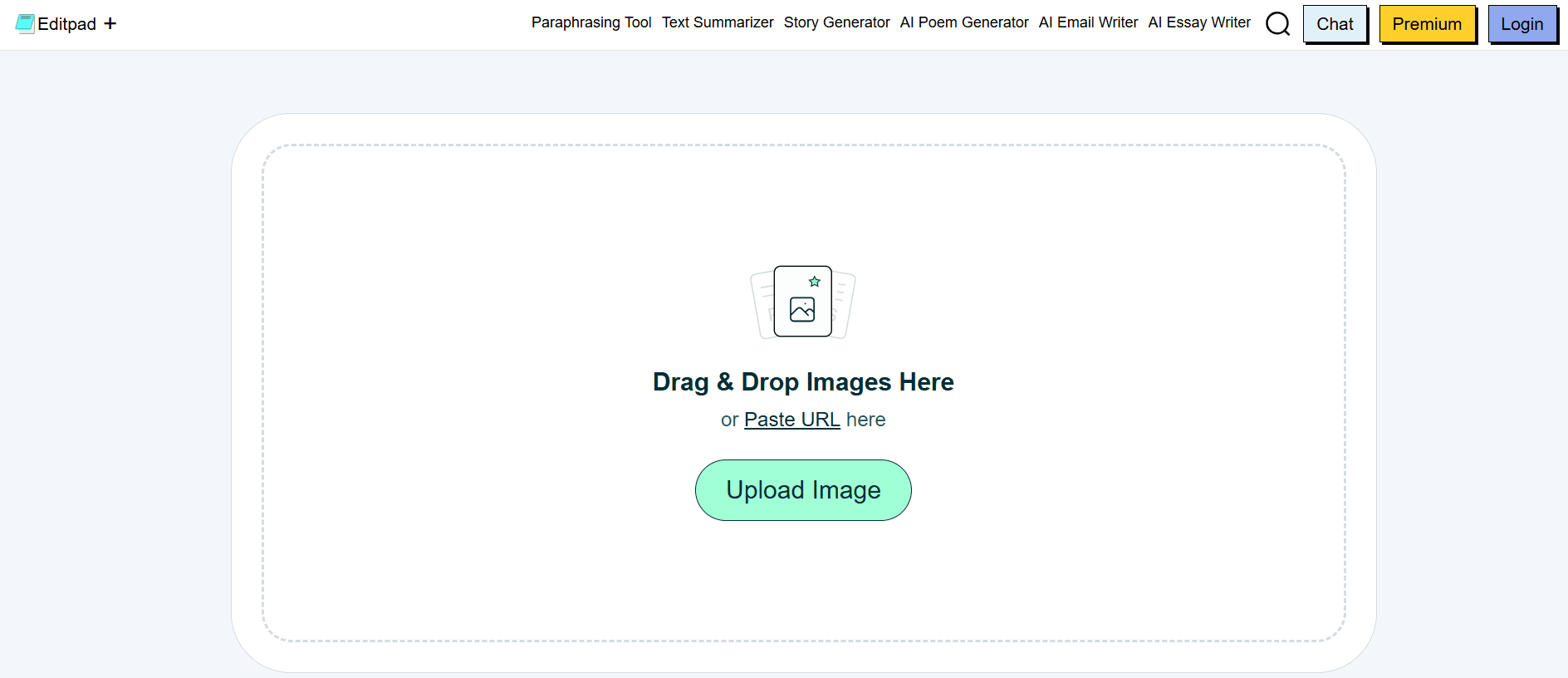
After tool selection, now you need to upload the required photo. For this, navigate to the upload button of the tool and click on it, and select your desired image from local storage.
You can also drag and drop the image or copy and paste it directly into the tool’s input field. Moreover, you can also paste a URL to input an image.
Step 3 - Extract the Text
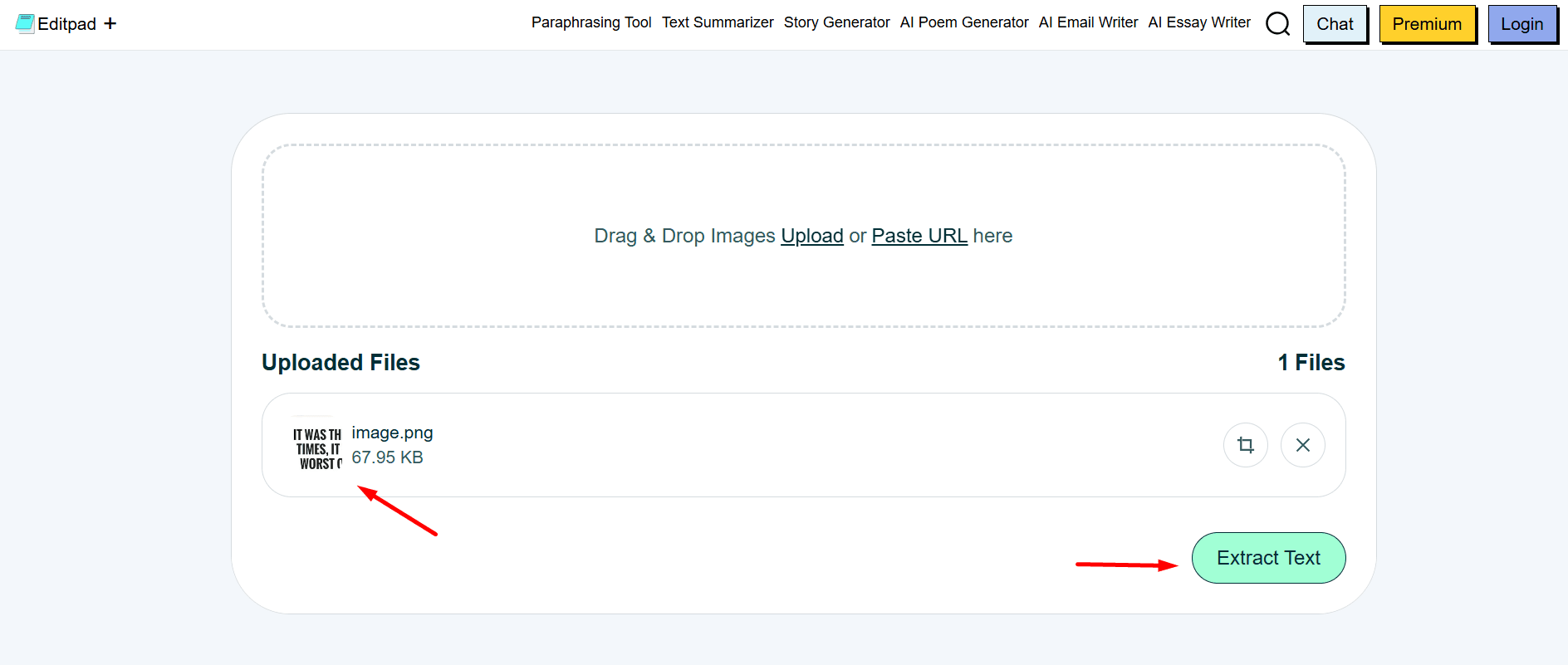
Once you upload the image to the tool, you’ll get the option to “Extract Text”. Click on it. Editpad will take a few seconds to scan text from the image and provide the editable text as output.
Step 4 - Review the Extracted Text
After the extraction is complete, the text will appear in the tool’s output field. Take some time to review the text. If your entered image is clear, the text will likely be free of errors. You can make a few edits if required.
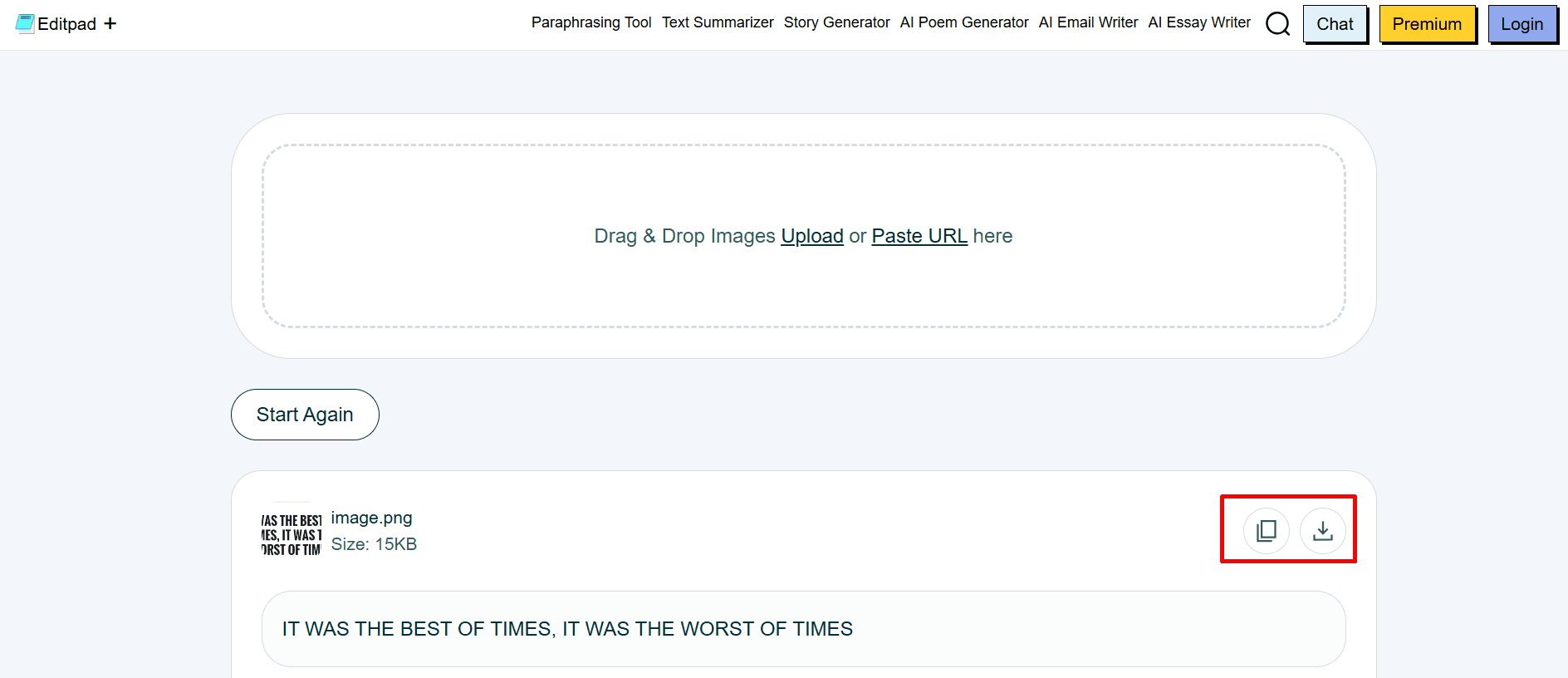
Editpad picture to text converter will also provide you with the options to copy or download the output results for later use.
Tips to Get a Good Output
To get a decent output from an online OCR tool, you can consider the following tips:
Use clear images - High-quality images help the tool detect text better
Check alignment - Properly aligned text is easier for the tool to process
Use good lighting - Adequate lighting reduces recognition errors
Check the output - A quick review ensures there are no mistakes
By following these tips, you can get good results with an image-to-text converter. With minimal editing, you can use the text.
Some Other Methods for Image-to-Text Conversion
Online OCR tools are good for quick conversions. However, there are some other methods as well for converting images into text directly without writing manually. The most common ones are stated below:
Desktop OCR software - Tools like Adobe Acrobat can handle image and PDF text extraction. They also give more control with editing, but they may take time to set up.
Mobile OCR apps - These apps let you scan a photo and pull out text instantly. They are useful when your workflow involves switching between different mobile phone apps.
Built-in system features - Windows or macOS already have basic text extraction tools, like a snipping tool.
The above methods work just fine. You can select any one depending on your preferences. Still, online image-to-text converters feel faster and easier.
Summing Up
Extracting text from images manually usually takes a lot of time. You have to type everything carefully, and there’s still a chance of errors.
However, with the help of OCR-powered image-to-text converters, you can get the text from images within seconds. All you need is to open one such tool. Upload your photo and click on the extract button. As simple as that. I’ve mentioned some other methods as well for getting text from images.
Such tools are fast and give reliable results, but they still require human review. It is better to do a quick review of their output. Once you are sure that the text is free of errors, you can use it. This saves a lot of time compared to typing manually.
Share

Ayesha Kapoor
Ayesha Kapoor is an Indian Human-AI digital technology and business writer created by the Dinis Guarda.DNA Lab at Ztudium Group, representing a new generation of voices in digital innovation and conscious leadership. Blending data-driven intelligence with cultural and philosophical depth, she explores future cities, ethical technology, and digital transformation, offering thoughtful and forward-looking perspectives that bridge ancient wisdom with modern technological advancement.


