


business resources
I Simplified My PC Maintenance Routine: How I Use AutoCare to Stay Optimized in 2026
14 Jul 2026

For years, keeping my PC clean felt like a part-time job. Running scans, manually choosing what to fix, restarting apps it was a cycle that never really ended. Then I started using the AutoCare feature in Advanced SystemCare, and everything changed.
I want to be honest upfront: I am not a tech-savvy power user who obsesses over kernel processes. I am someone who just wants my computer to work. Fast, reliably, and without me having to think about it too much. That is exactly the experience I have had since simplifying my maintenance routine around this tool and I think a lot of people are in the same boat.
Why My Old Maintenance Routine Was Failing Me
Before I found a better way, my approach to PC maintenance was reactive. I would notice my computer slowing down, then scramble to clear some files, uninstall apps, or run whatever free cleaner I had bookmarked. It worked—sort of—but only temporarily. A week later, the slowdown would creep back.
The real issue was that I was treating symptoms rather than causes. I had no consistent scanning schedule, no way to know what was accumulating in the background, and certainly no intelligent layer deciding what actually needed attention. I was flying blind.
Discovering AI Mode: A Smarter Way to Scan
The first thing that caught my attention when I started using Advanced SystemCare as my PC cleaner was the toggle between AI Mode and Manual Mode. I had assumed they were just two different interfaces for the same task. They are not.
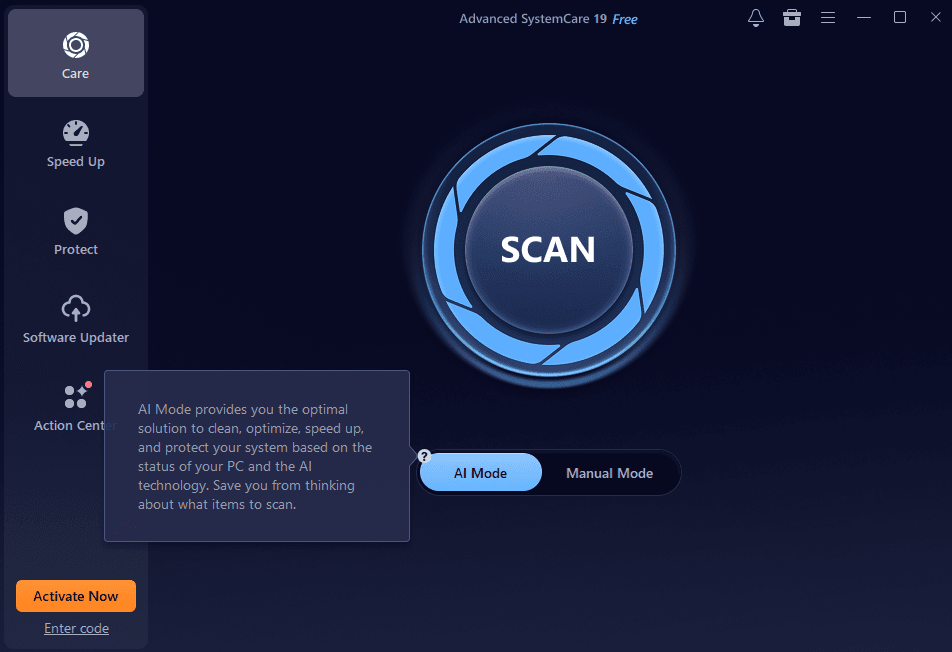
AI Mode uses your PC's status and AI-driven analysis to determine exactly what needs fixing—no guesswork required. You don't need to know the difference between registry defragmentation and disk optimization. The software figures that out for you. It analyses what your specific machine needs at that specific moment, then builds a scan accordingly.
This shift alone eliminated what I call "maintenance decision fatigue." I used to spend five minutes just deciding which boxes to check before running a scan. Now I press one button and go make coffee.
Manual Mode: For When You Want More Control
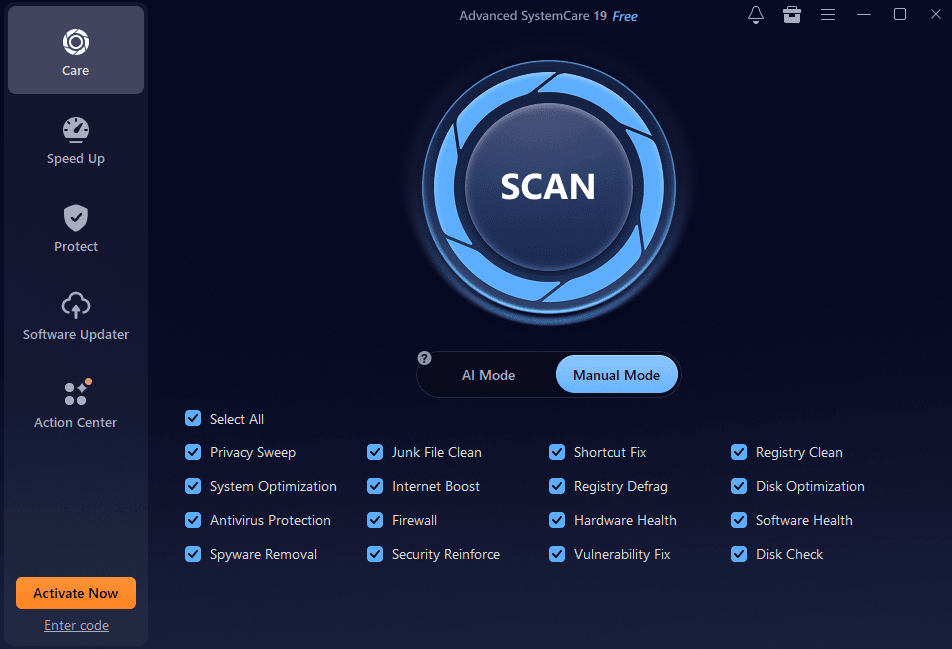
Manual Mode exists for users who prefer granular control. You can select exactly which of the sixteen-plus scan categories to include, from junk file cleaning and antivirus protection to disk optimization and vulnerability fixing.
What Happens During a Scan
Once you hit Scan, the process is thorough and transparent. You can watch in real time as the software works through every major category: privacy traces, junk files, invalid shortcuts, registry entries, system optimizations, internet improvements, firewall status, and more. Each category gets checked off with a status indicator as it completes.
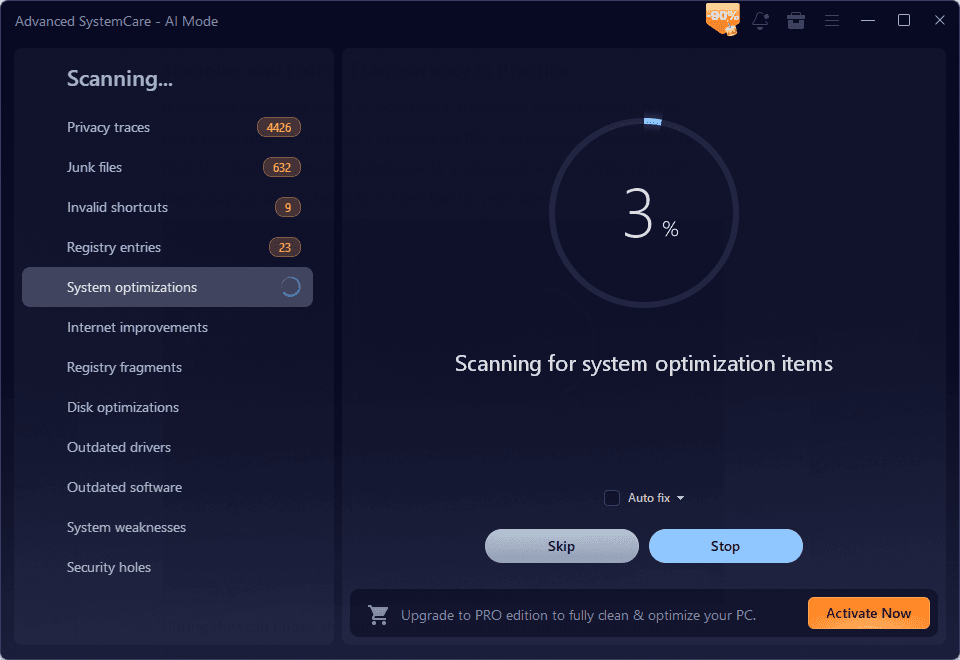
What struck me during my first proper scan was the volume of issues it found that I had no idea existed. Over 4,500 privacy traces. More than 100 junk files. Registry entries I hadn't touched in months. None of this was catastrophic, but it was the kind of quiet buildup that explains why PCs degrade over time without any single obvious cause.
The Fix Phase: Watching Problems Disappear
After scanning comes the fix phase, and this is where the tool earns its name as a serious Windows cleaner. Rather than just flagging issues and asking you what to do with each one, it gets to work. You see the progress on screen, including which file is being addressed, and the percentage completion climbs steadily.
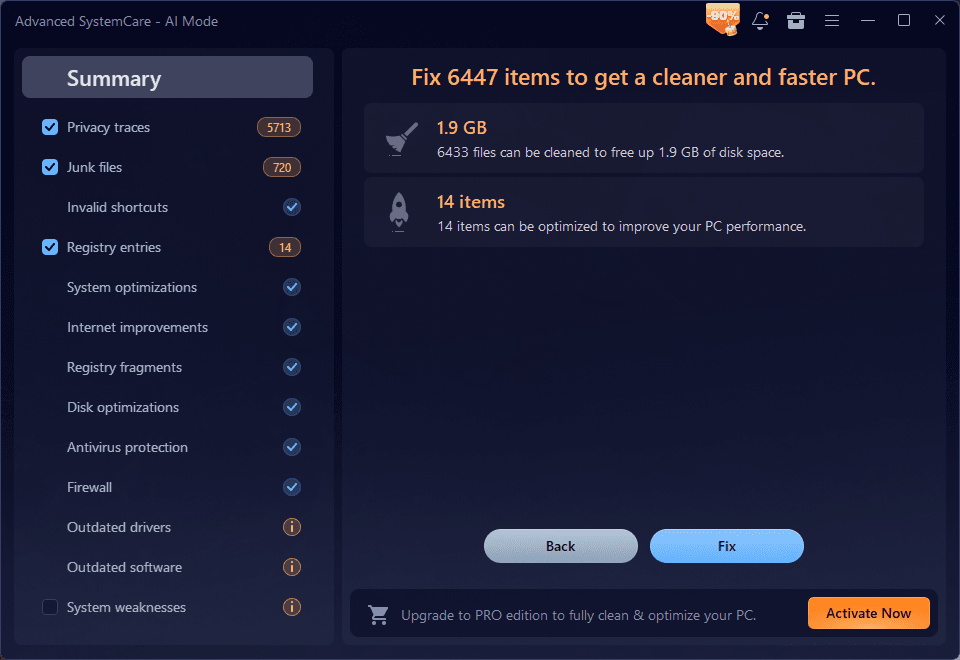
The experience is satisfying in a way that is hard to describe unless you have used it. Watching 1.9GB of junk get cleared, 14 performance items get optimized, and a security vulnerability get patched all in one session is genuinely gratifying. You feel like you've done something meaningful for your machine.
Reading the Summary: What Actually Got Fixed
One of the features I've come to appreciate most is the post-fix summary screen. It breaks down exactly what was found and resolved across every category, including privacy traces cleared, junk files removed, registry entries repaired, and security items patched.
Speed Up and Protect: The Broader Ecosystem
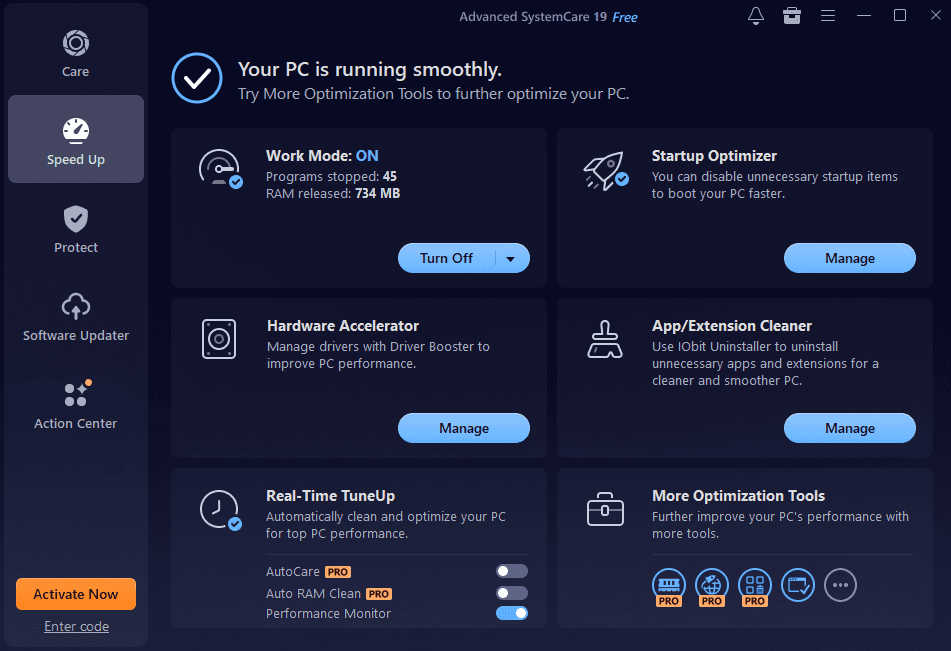
Not just a Windows cleaner, beyond the core Care tab, two sections of Advanced SystemCare have become regular stops in my routine. The Speed Up tab gives me a live view of Work Mode, showing how many background programs have been halted and how much RAM has been freed. On a typical session, I'll see 40+ programs stopped and over 700 MB of memory recovered. That's not trivial.
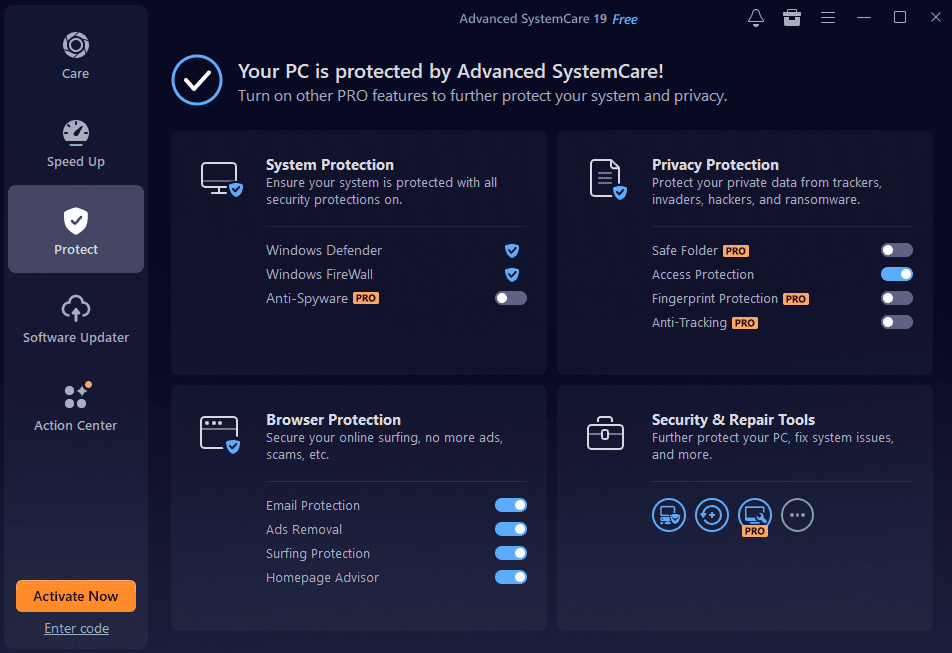
The Protect tab is equally reassuring. It shows the status of Windows Defender, Windows Firewall, browser protection features like ad removal and surfing protection, and privacy tools. It's a useful security dashboard that takes seconds to review.
How This Changed My Actual Routine
Here's what my current maintenance routine looks like: once a week, I open Advanced SystemCare, hit Scan in AI Mode, let it run for a few minutes, then click Fix. That's it. I am not exaggerating when I say it takes less time than making a cup of tea.
The compound effect of weekly maintenance turns out to be significant. My startup time is faster. Applications open more reliably. I spend less time restarting things or wondering why something is lagging.
Final Thoughts
The free version handles the core maintenance tasks competently. If you want features like Anti-Spyware, Safe Folder, or Fingerprint Protection, the Pro tier unlocks those. But even without upgrading, the routine I've built around the free version has meaningfully improved how my PC performs every single day. Advanced SystemCare does exactly that.


