
Markets & Investing, Trading Strategies & Tech
Trouble with your thinkorswim login? Here’s a quick guide
07 Apr 2026

Having trouble getting into your thinkorswim account? It happens to everyone sometimes. Whether you’re trying to check your trades on the go or just log in for the day, a sticky thinkorswim login can be frustrating. This guide is here to help you get back into the platform quickly and easily. We’ll cover how to access your account, sort out common login glitches, and point you toward resources that can make your trading experience smoother.
Key Takeaways
- Access the thinkorswim web platform directly through your browser without needing to download any software.
- Use your Schwab account credentials to log in to the thinkorswim platform.
- Customize your workspace layout to better suit your personal trading style and preferences.
- Utilize the platform’s charting tools and various indicators for analyzing market trends.
- Explore the available educational resources to improve your trading knowledge and skills.
Accessing Your thinkorswim Login

Getting into the thinkorswim platform is pretty simple, really. You don’t need to download a whole bunch of stuff, which is nice. It’s all done right through your web browser. This makes it super convenient to check in on your trades or make a quick adjustment from almost anywhere.
Navigating To The Login Page
So, how do you actually get there? The most direct way is to just type trade.thinkorswim.com into your browser’s address bar. It’s quick and gets you right to the login screen. Alternatively, you can start at the main Charles Schwab website and find the link for thinkorswim Web from there. Either way works, but I usually just go straight to the address. It saves a step.
Entering Your Credentials
Once you’ve landed on the login page, you’ll need your Schwab Login ID and password. It sounds obvious, but double-check that you’re typing them in correctly. Passwords are case-sensitive, so make sure your caps lock isn’t on if it shouldn’t be. You’ll also see an option to choose between "Live Trading" and "paperMoney." If you’re ready to trade with real money, pick "Live Trading." If you want to practice first without using actual cash, "paperMoney" is the way to go. It’s a great way to get a feel for the platform, kind of like using a simulator before a big game. You can explore all the features in a risk-free environment using paperMoney offers a virtual trading experience on thinkorswim.
After entering your details, just hit that "Log In" button. If everything is correct, you should be taken straight into the platform. Sometimes, depending on your account settings, you might be asked for a second verification step, like a code sent to your phone. This is just an extra layer of security.
Here’s a quick rundown of what you’ll need:
- Schwab Login ID: Your primary identifier.
- Password: Your account password (remember, it’s case-sensitive).
- Trading Mode: Choose "Live Trading" or "paperMoney."
It’s really that straightforward to get started.
Troubleshooting Common thinkorswim Login Issues
So, you’re trying to log into thinkorswim and hitting a wall? It happens to the best of us. Don’t sweat it; most login problems are pretty simple to fix. Let’s walk through some common hiccups and how to get past them.
Verify Your Login Credentials
This might sound obvious, but it’s the most frequent culprit. Double-check that you’re typing your Schwab Login ID and password exactly right. Remember, passwords are case-sensitive, so that ‘P’ in ‘Password123’ is different from ‘p’. Also, make sure you’re not accidentally trying to log into the wrong environment – you’ll usually see options for ‘Live Trading’ or ‘paperMoney®’. If you’re unsure, try typing your credentials into a simple text document first to see them clearly, then copy and paste them into the login fields. This can help catch typos you might otherwise miss. If you’re still having trouble, it might be time to reset your password.
Clear Browser Cache and Cookies
Sometimes, your web browser holds onto old information that can mess with new login attempts. Think of it like trying to load a new webpage, but your browser keeps showing you an old version it saved. Clearing out the cache and cookies can give the login page a fresh start.
Here’s a general idea of how to do it for most browsers:
- Google Chrome: Go to Settings > Privacy and security > Clear browsing data. Select ‘Cookies and other site data’ and ‘Cached images and files,’ then click ‘Clear data.’
- Mozilla Firefox: Go to Options > Privacy & Security > Cookies and Site Data > Clear Data. Make sure both boxes are checked and click ‘Clear.’
- Safari: Go to Safari > Preferences > Privacy > Manage Website Data > Remove All.
After clearing, close and reopen your browser, then try logging in again. This often solves those weird, unexplained login failures.
Utilize Password Reset Options
If you’ve forgotten your password or suspect it might be compromised, using the password reset feature is your best bet. You can usually find a link like "Forgot Password?" or "Trouble Logging In?" right on the login page. Clicking this will typically take you through a series of steps to verify your identity, often involving sending a code to your registered email or phone number. Follow the prompts carefully. This process is designed to be secure, so make sure you have access to the contact information associated with your account. If you’re having issues with real-time data feeds, you might want to check if thinkorswim is running properly.
Sometimes, even after trying these steps, you might still face login issues. This could be due to temporary server problems on their end or a more complex account-specific issue. Don’t get too frustrated; there’s usually a way forward.
If none of these solutions work, your next step should be to contact Schwab’s customer support directly. They have the tools to look into your specific account and help you get back in.
Understanding The thinkorswim Web Interface
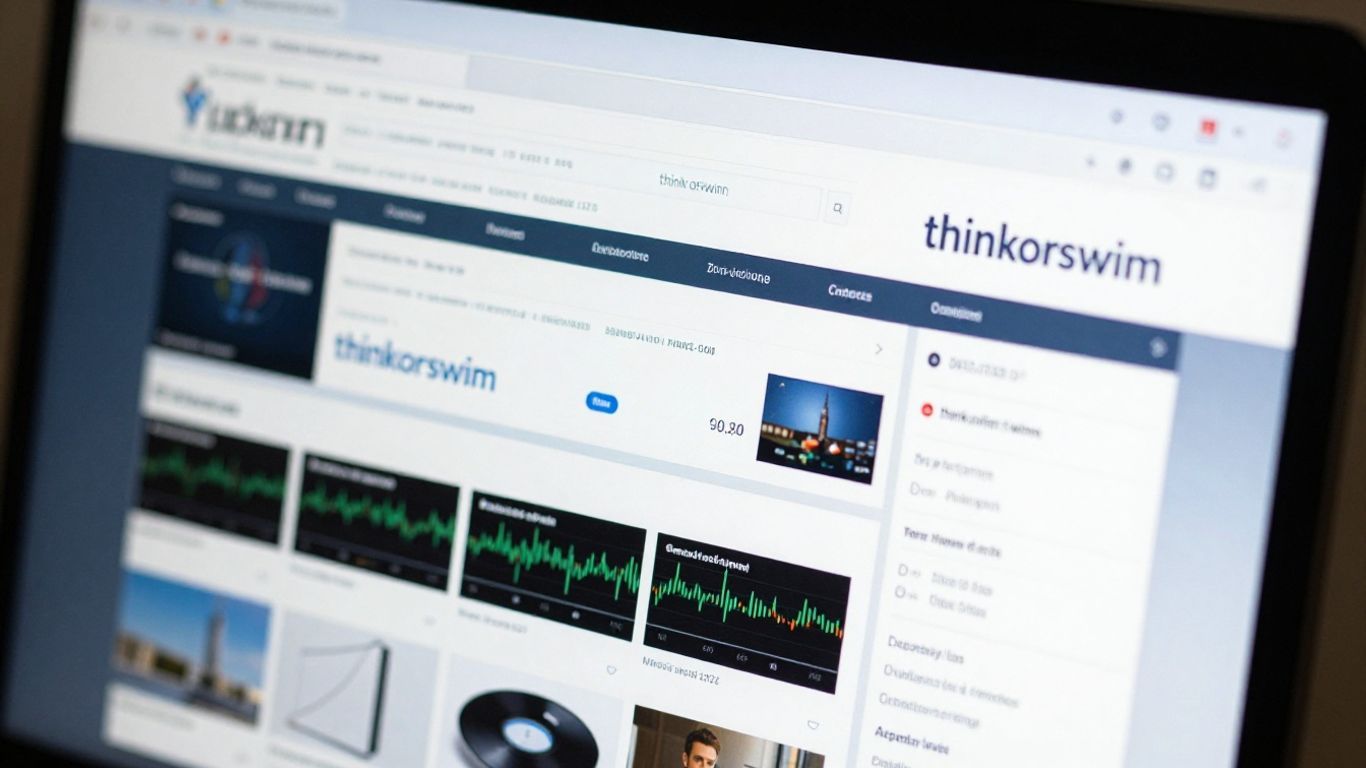
So, you’ve successfully logged into the thinkorswim web platform. Now what? Think of this web version as a streamlined, accessible version of the powerful desktop software. It’s designed to get you to the information and tools you need without all the extra bells and whistles, making it super handy whether you’re at your desk or on the go. The main goal here is to make it easy to keep an eye on your investments and make trades when opportunities arise.
Overview Of Key Features
The thinkorswim web interface is built around getting you quick access to the most important trading functions. You’ll find that most of the core features you’d expect are right there. It’s all about making things straightforward so you can focus on your trading.
Here are some of the main areas you’ll interact with:
- Watchlists: This is where you can keep track of the stocks, ETFs, or other securities you’re interested in. You can create multiple lists to organize your focus.
- Charts: Visualizing price movements is key. The web platform provides charting tools that let you see historical data and apply some basic technical indicators.
- Order Entry: When you’re ready to buy or sell, the order entry section is where you’ll go. It’s designed to be clear and concise for placing different types of trades.
- Account Summary: A quick look at your current positions, buying power, and overall account value is usually just a click away.
The web interface is a great starting point for new users or for anyone who needs quick access without the full desktop download. It’s a solid tool for managing your portfolio on the fly.
Customizing Your Workspace
While the web version might not offer the same depth of customization as the desktop application, you still have some control over how your workspace looks and functions. You can often rearrange panels or choose which information widgets are displayed. This helps tailor the interface to your personal trading style and priorities. For instance, you might want to see your watchlist and a chart side-by-side, or perhaps have quick access to an economic calendar. Experimenting with these options can make your trading sessions more efficient. You can find resources to help you adjust the appearance, like changing color schemes.
Utilizing The Navigation Bar
The navigation bar is your primary tool for moving around the thinkorswim web platform. It’s typically located at the top or along one side of the screen and contains links to the different sections of the application. Think of it as the main menu.
Common sections you’ll find include:
- Monitor: This is where you’ll review your account balances, positions, and order history.
- Trade: This section is dedicated to placing new orders for stocks, options, and other instruments.
- Analyze: Here, you can explore different analytical tools, screen for securities, and research potential trades.
- Charts: Direct access to the charting tools for technical analysis.
It’s a good idea to spend a little time clicking through each of these sections. Getting familiar with where everything is located will save you time and reduce frustration when you need to access a specific tool or piece of information quickly.
Enhancing Your thinkorswim Security
Keeping your trading account safe is super important, and thinkorswim gives you a few ways to do that. It’s not just about logging in; it’s about making sure only you can get into your account and that your information stays private. Think of it like putting extra locks on your front door.
Managing Your Account Settings
First off, make sure your personal details are up-to-date. This might seem basic, but if they have old contact info, it could cause problems down the line. You can easily update things like your address or phone number right on the platform. Just log in, find the ‘Settings’ or ‘My Profile’ area, and look for ‘Personal Information’. Double-check everything before you hit save!
Setting Up Notifications
Getting alerts for what’s happening with your account is a really smart move. thinkorswim lets you set up notifications for all sorts of things. You can get emails or texts when a trade goes through, if there’s a margin call, or for other important account updates. It’s a good way to stay in the loop without having to constantly check your account yourself. You usually find these options under ‘Settings’ too, often in a section called ‘Notifications’ or ‘Alerts’. You can pick what kind of alerts you want and how you want to get them.
Adjusting Security Preferences
This is where you can really beef up your account’s defenses. Enabling two-factor authentication (2FA) is one of the best things you can do. This means even if someone gets your password, they still can’t log in without a special code, usually sent to your phone. It’s like needing a key and a secret handshake to get in.
Here are some security steps to consider:
- Change your password regularly. Don’t use the same password everywhere, and make it a strong one – a mix of letters, numbers, and symbols.
- Enable two-factor authentication (2FA). This adds a significant layer of protection.
- Review linked devices. Periodically check which devices are connected to your account and remove any you don’t recognize.
- Set up security questions. These can be used for extra verification if needed.
It’s a good idea to look over your security settings every so often. Think of it as a quick check-up to make sure everything is still as safe as it should be. Keeping your personal information current and setting up alerts helps you stay informed and react quickly to any unusual activity, which is key for protecting your trading account.
Making these adjustments helps keep your account secure and gives you peace of mind while you trade.
Exploring Educational Resources For thinkorswim
So, you’ve got the login sorted and maybe even placed a trade or two. But let’s be real, trading can be a bit of a puzzle sometimes, right? Thinkorswim knows this, and they’ve put together a bunch of stuff to help you figure things out. It’s not just about the buttons and charts; it’s about getting a better grip on what you’re doing.
Accessing The Learning Center
This is basically thinkorswim’s library. You can find it right on the platform, usually tucked away under a "Support" or "Education" tab. It’s packed with articles, videos, and even some interactive lessons. If you’re new to trading or just want to get more out of the platform, this is a solid place to start. They’ve made it pretty easy to find what you need, so you don’t waste time searching.
Utilizing Webinars And Tutorials
Beyond the articles, they host live webinars and have a library of on-demand tutorials. These are great because you can often hear from experienced traders who share how they approach the market. You can usually see a schedule for upcoming live sessions, or just pick a tutorial that covers something you want to learn, like specific trading setups for NASDAQ (QQQ) and NQ futures. It’s a good way to learn at your own speed.
Here’s a quick look at what you might find:
- Webinars: Live sessions covering market analysis, trading strategies, and how to use platform tools.
- Tutorials: Step-by-step guides for using specific features.
- Recorded Sessions: Access to past events so you can watch whenever it suits you.
Finding Community Support
Trading can feel like a solo sport sometimes, but thinkorswim has a community aspect too. There are forums and chat rooms where you can connect with other users. It’s a place to ask questions, share what you’ve learned, or just see what others are talking about. It can be helpful to hear from people who are actually using the platform day-to-day.
Remember, while community advice can be useful, it’s always best to do your own homework and make your own trading decisions. Don’t just follow what someone else says without understanding the risks.
Mastering thinkorswim Trading Features
Alright, so you’ve got your login sorted and you’re ready to actually, you know, trade. thinkorswim has a lot going on under the hood, and getting comfortable with its trading tools is key. It’s not just about clicking buttons; it’s about understanding what you’re doing.
Placing Trades On thinkorswim Web
Getting a stock trade done is pretty simple once you find your way around. You’ll want to head over to the "Trade" tab. There’s a spot to type in the stock symbol you’re interested in. Once you do that, you’ll see a quick rundown of the stock – its current price, how much is trading, that sort of thing. To actually place an order, you’ll usually click on the "Ask" price. This pops up a form at the bottom where you fill in how many shares you want, the price you’re willing to pay (if you’re not just going with the market price), and what kind of order it is. Always give it a good look-over before you hit "Confirm and Send".
Trading Options
Options are a bit more complex, but the process on thinkorswim is similar. Stick with the "Trade" tab and look for the "Option Chain" section. Put in the ticker symbol for the stock you’re looking at. You’ll see a grid showing calls on one side and puts on the other, with different dates and prices. Pick the one you want by clicking its "Ask" price if you’re buying. Again, an order form appears. Fill in the details – how many contracts, the price, order type, and how long it should be good for. Double-check everything before sending it off.
Reviewing Your Trade History
Keeping tabs on what you’ve done is pretty important, right? You can find all your past trades and current positions under the "Monitor" tab. Look for something like "Activity and Positions." This section shows you completed orders, what you currently hold, and anything that’s still waiting to go through. You can sort through it by date, by stock symbol, or by the type of order, which is handy for keeping your records straight.
It’s a good idea to start small, especially when you’re new to options. Don’t put money on the line that you can’t afford to lose. Take the time to really get what the risks are before you jump in.
Here’s a quick look at some common order types you might use:
- Market Order: Buys or sells immediately at the best available current price. It’s fast but the price might not be exactly what you expected.
- Limit Order: Lets you set a specific price you’re willing to buy or sell at. Your order only goes through if the market reaches your price.
- Stop Order: Becomes a market order once a certain price is reached. Often used to limit losses.
- Stop-Limit Order: Combines a stop price with a limit price. It becomes a limit order when the stop price is hit, giving you more control but also the risk of the order not filling if the price moves too quickly.
Wrapping Things Up
So, getting into your thinkorswim account shouldn’t be a huge headache. We’ve gone over how to log in, what to do if you hit a snag, and even a bit about what you can do once you’re in. Remember, if you’re ever stuck, there’s usually a help section or customer support ready to lend a hand. Don’t let a tricky login keep you from trading. Give these steps a try, and hopefully, you’ll be back to checking your trades in no time. Happy trading!
Frequently Asked Questions
How do I get to the thinkorswim login page?
It’s super easy! Just type trade.thinkorswim.com right into your web browser’s address bar. You don’t need to download anything. Another way is to go to the Charles Schwab main website and find the link there.
What if I forget my password?
No worries! If you can’t remember your password, look for a ‘Forgot Password?’ link on the login page. Clicking that will start a simple process to help you set up a new one.
Can I practice trading on thinkorswim without using real money?
Absolutely! When you log in, you can choose ‘paperMoney.’ This is like a practice account where you can trade with fake money to get the hang of things before you risk your own cash.
What should I do if I’m still having trouble logging in?
First, double-check that you’re typing your login details correctly and that your internet is working. If that doesn’t help, try clearing your browser’s temporary files (cache and cookies). If you’re still stuck, it’s best to contact Charles Schwab customer support for help.
Is the thinkorswim web version the same as the desktop app?
Thinkorswim web is a great way to access the platform from your browser without downloading anything. It has many of the same features, like charts and trading tools, but the desktop app might offer more advanced options and customization.
How can I make my thinkorswim workspace look how I want it?
You can definitely make thinkorswim web your own! You can move different windows around, add or remove tools, and change how things are set up. It helps make your trading experience more comfortable and efficient.


