business resources
How to Extract Text from Images Without Software
26 Aug 2026

Thanks to the continuous advancements in technology, extracting editable text from images has become easier and more efficient. However, not everyone wants to install additional programs or has the storage and system capacity to install them.
If you are one of them, then there is good news. There are multiple alternative methods available that can help you extract text from images without downloading any software or application.
This blog post is going to discuss a couple of those methods with a detailed step-by-step procedure. So, without further delay, let’s get started!
Two Methods for Extracting Text from Images Without Downloading Any Software
We have discussed two approaches below that will assist you in converting images into editable text without having to download software.
Use an Online Picture to Text Converter
Picture to text converter is an online tool that is specifically designed to convert images such as screenshots, invoices, handwritten notes, etc., into editable text. There is a wide variety of such converters available on the internet. You should go with the one that is reliable and versatile to ensure maximum accuracy in the extraction process.
Here are a few factors that can help you choose the right tool:
- Good Rankings: Try to find a converter that ranks higher in the search engine results, probably on the first page. A decent ranking indicates that the search engine trusts its reliability and credibility.
- Batch Processing Functionality: A good image-to-text converter is usually capable of processing multiple pictures in one go for text extraction. This feature is called batch processing. So, you should take this into consideration during the selection procedure.
- Support for Different Languages: Look for the one that can extract text from images in different languages. This capability also indicates versatility.
- Powered by OCR: Optical character recognition (OCR) is a technology that plays a vital role in the extraction process. So, make sure your selected tool claims to operate on this technology.
Based on these, we also picked a picture to text converter, which will be used for the visual demonstration of the upcoming steps.
Step-by-step Procedure:
The conversion process is simple and straightforward. These steps should be followed:
- Upload the required image: Insert the image into the tool. You can do so through drag and drop or by loading it from your device’s local storage. Some tools also allow pasting an image URL if it’s available online.
Important note: Always ensure your uploaded photo is of high quality in terms of resolution. Otherwise, it may make it difficult for the tool’s algorithms to analyze the text, which increases the overall chances of making errors in the output.
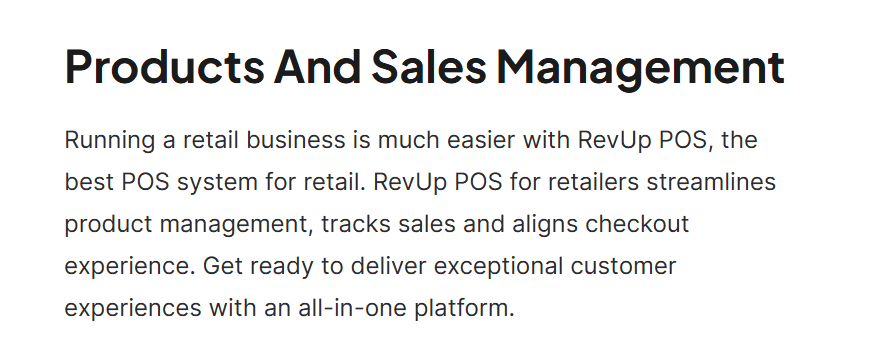
For demonstration, we are going to extract text from the following picture.
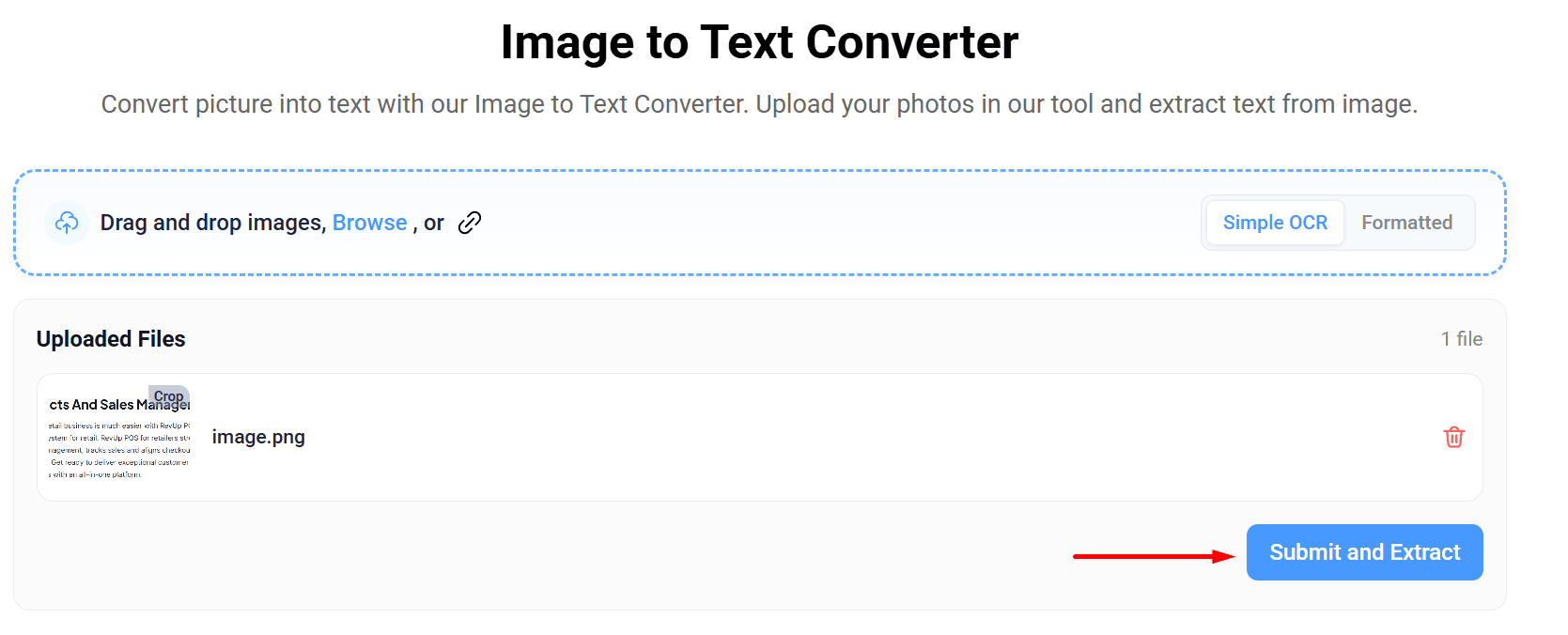
- Start Conversion: Once the picture is uploaded, you can start the conversion process. To do so, simply click the “Submit and Extract.”
A screenshot is also attached below to provide a better idea.
- Review Output Results: After clicking the button, the tool will take only a few seconds to return the extracted text.
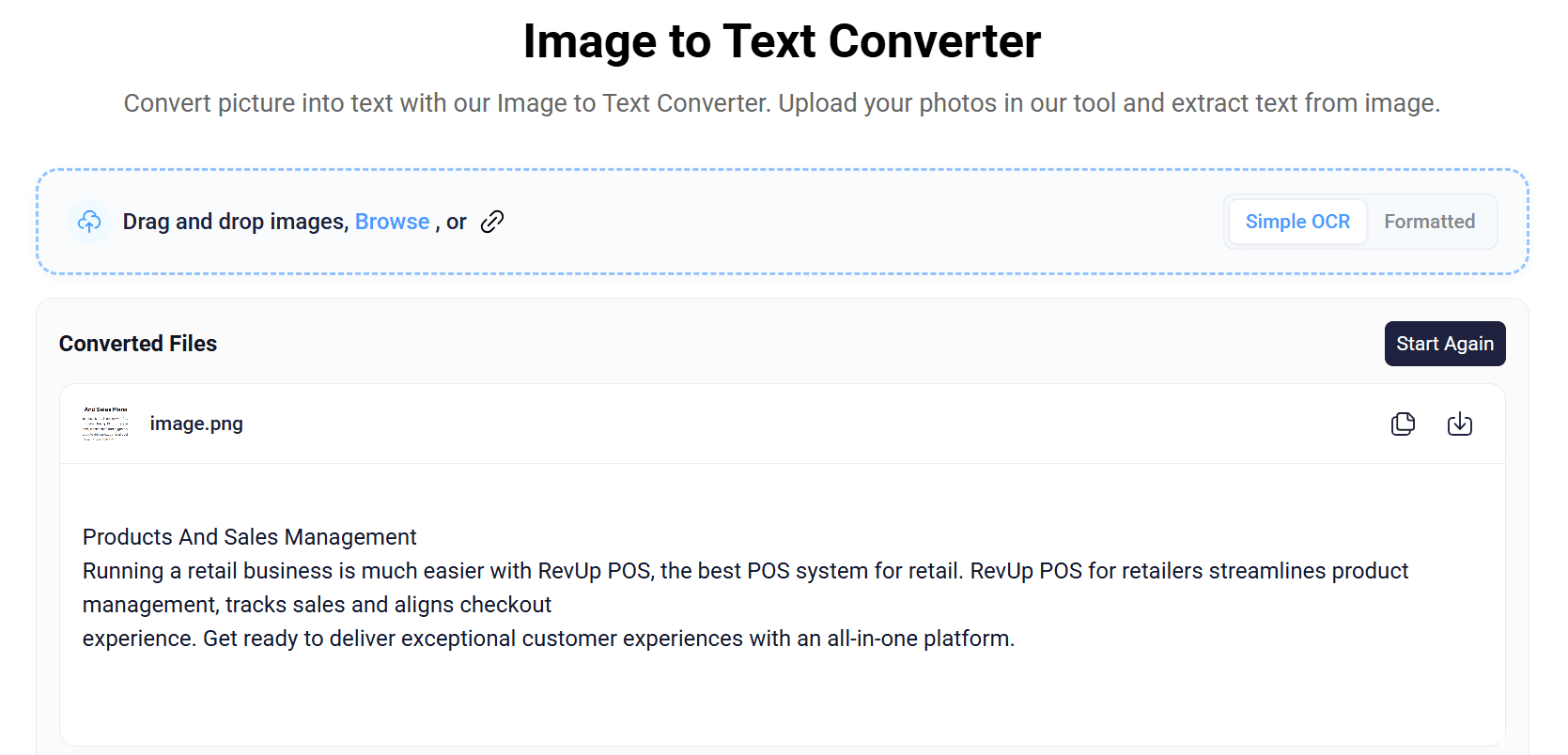
After that, you can copy or download the extracted text. That is all that it takes to extract text from images through a picture to text converter.
Use Google Lens Facility
Most of you may have used Google Lens for searching relevant images on the internet…right? But let us tell you that this facility can also help copy editable text from any image, whether it's available online or stored in a gallery.
Sounds interesting? In the following section, we have explained how exactly this facility works.
Step-by-step procedure:
Here are the steps that you need to take to use Google Lens for image-to-text conversion.
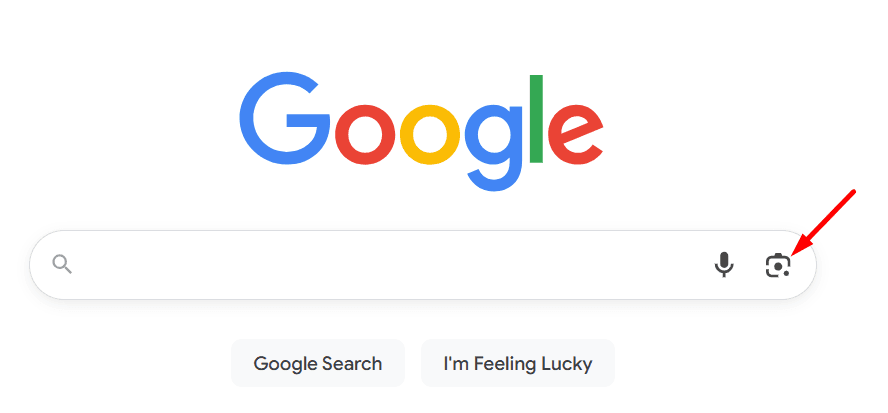
- Open Google Lens: First, go to Google.com. Now, click on the image-like icon appearing on the right side of the search bar.
Below is a pictorial demonstration:
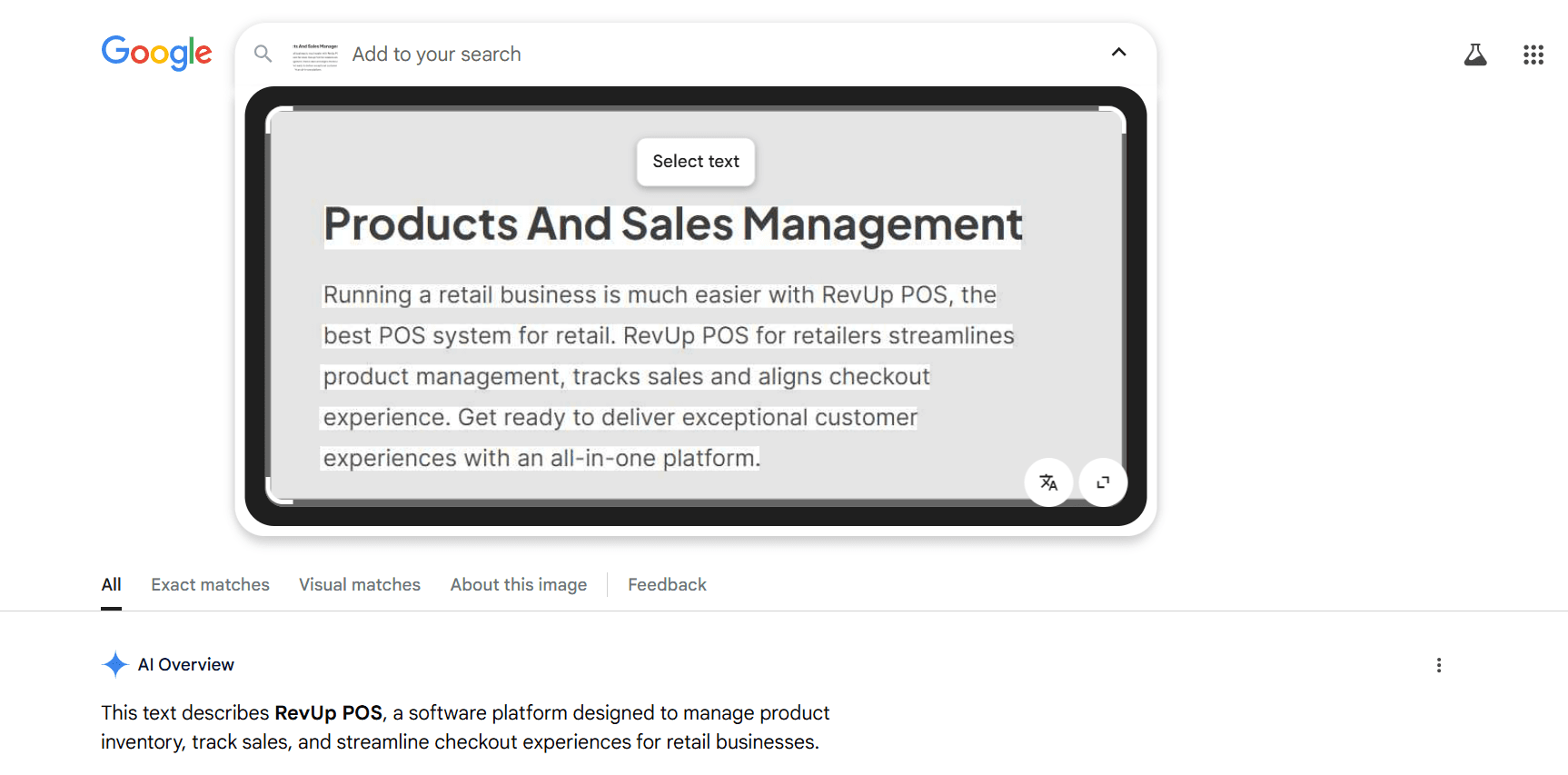
- Open the Required Image with Google Lens: After clicking the icon, Google Lens will ask you to upload the required image from local storage.
Alert: In case the image is available on a website or forum, then you can simply right-click on it and select the “Search this image with Google Lens” option from the menu. This will instantly open that image in Google Lens.
In either case, this is how the image will look once it is opened with the Google Lens facility.
- Double-Click to Select the Text: Now, double-click on the image and start selecting the text that you want to copy.
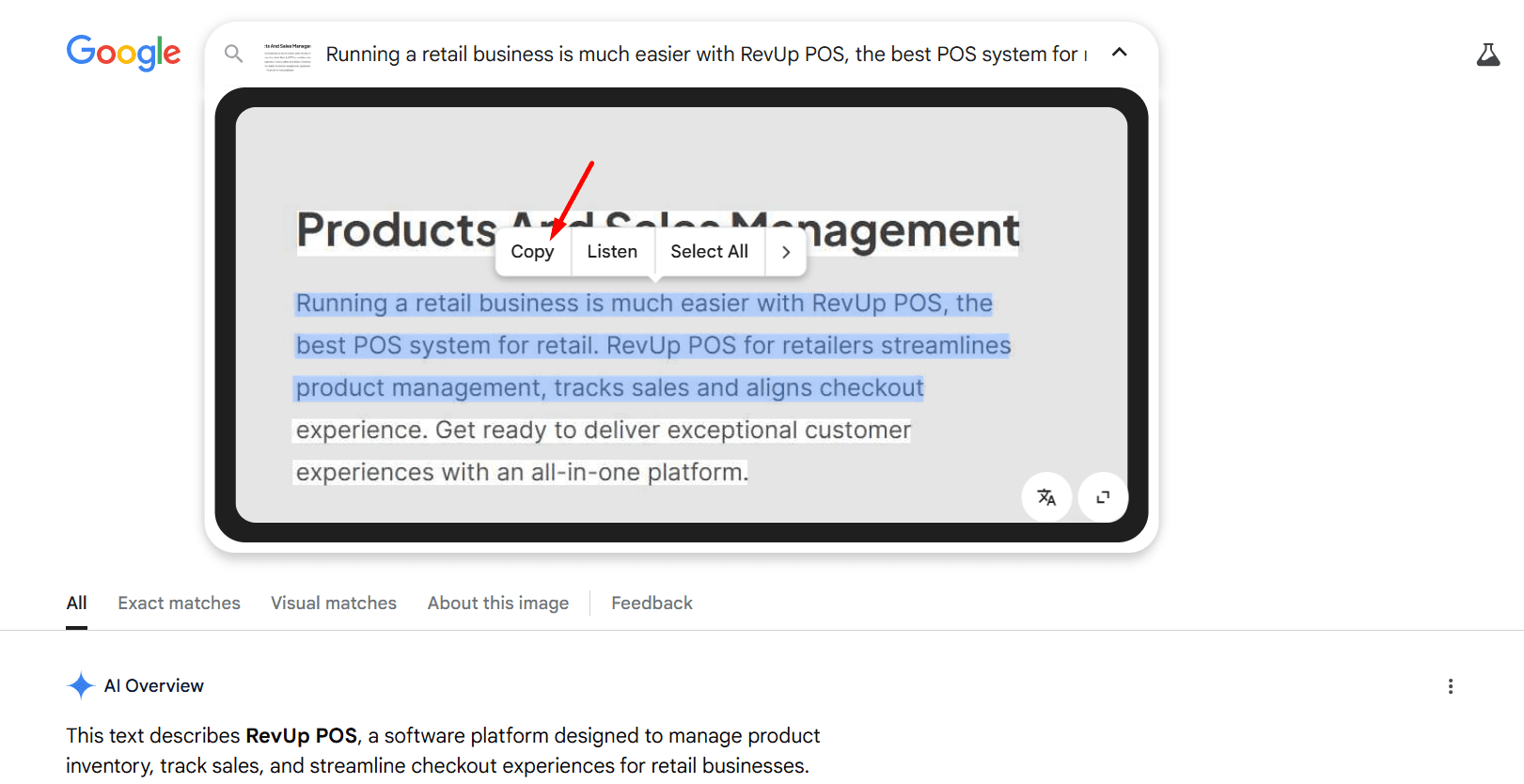
- Click the Copy Button: Finally, click on the “Copy” option, and the selected text will be copied to your device’s clipboard. You can paste and use it wherever you want.
So, these are two of the most effective methods that you can take to extract editable text from images without downloading any software.
Final Words
Now, there is no need to download and install heavy and complicated software on your device to convert images into editable text. This is because there are multiple alternatives that allow extracting text from images online. These include using a web-based picture to text converter and Google Lens.
Both methods are simple, free, and highly accurate; you can use any based on your personal preferences. This blog post has explained these methods in a step-by-step manner, along with pictorial demonstrations to ensure a better understanding. We hope you find this article valuable and interesting!
Frequently Asked Questions (FAQs)
What is the easiest way to perform text extraction from images without downloading any software?
The easiest way to convert images into editable text without downloading any software is by utilizing an online picture to text converter. These are readily available online and are simple to use. All you need to do is visit the tool, upload the required image, start the conversion process, and get results in a matter of seconds.
How accurate will the extraction be using the above-mentioned methods?
Both methods (the online tool and Google Lens) discussed in this article are highly accurate. However, it is important to note that the accuracy heavily depends on the quality of your input picture. A blurry or low-light image will make it difficult for the
Are online picture to text converters free and safe to use?
Yes, the majority of the image to text converters on the internet are free and safe. But still, it is advised to always read the privacy policy before using any online tool. It is also advisable to avoid uploading sensitive or confidential pictures online.
Can I use Google Lens on both mobile and desktop?
Yes, you can use Google Lens either on a smartphone or a desktop computer. The procedure remains the same. Go to Google.com, click on the image icon to upload, double-click on the required text, and copy. That’s it!


